


The Ultimate Restream Tutorial: Boost Your Live Streaming Strategy Easily
If you’re serious about live streaming and want to grow faster without working 10x harder, this Restream tutorial is for you. Instead of going live on just one platform, Restream lets you broadcast to multiple platforms at the same time — YouTube, Facebook, Twitch, LinkedIn, and more — all from a single place.
Table of Contents
- 1 Understanding Restream and Multistreaming
- 2 Benefits of Using Restream for Your Live Streaming Strategy
- 3 Getting Started with Restream Step-by-Step
- 4 How to Set Up Your First Multistream with Restream
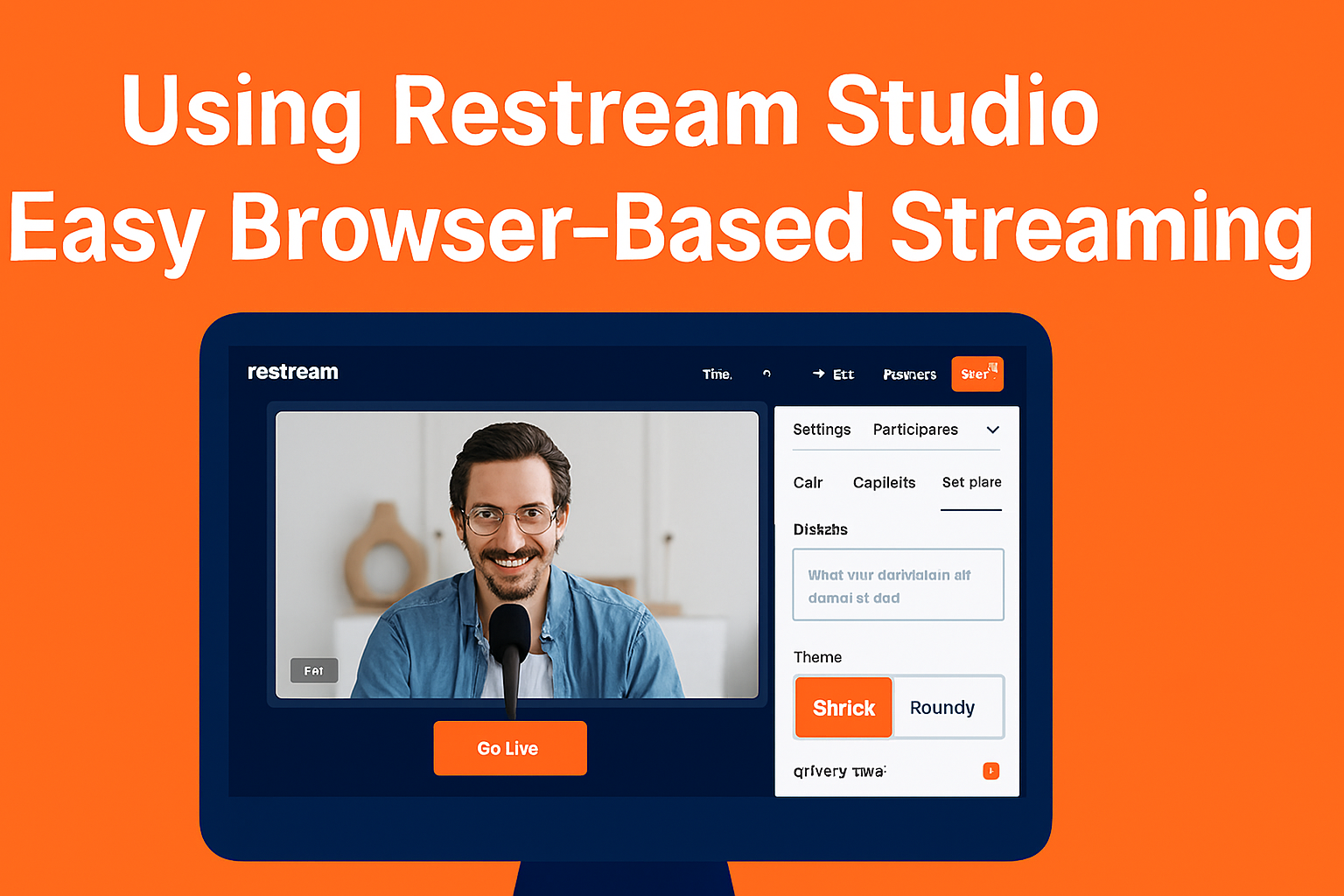
- 5 Using Restream Studio for Easy Browser-Based Streaming
- 6 Using Restream with OBS, Streamlabs, and Other Encoders
- 7 Engaging Your Audience Across Multiple Platforms
- 8 Scheduling and Promoting Your Live Streams with Restream
- 9 Analytics and Optimization: Tracking Your Restream Performance
- 10 Tips, Tricks, and Best Practices for Restream Success
- 11 Ideal Internet, Audio, and Video Setup
- 12 Branding Your Stream Like a Pro
- 13 Common Mistakes to Avoid When Using Restream
- 14 Conclusion
- 15 Frequently Asked Questions
Understanding Restream and Multistreaming
What Is Restream?
Restream is an online platform that lets you multistream — meaning you can broadcast your live video to multiple platforms at the same time. Instead of choosing between YouTube or Facebook, you can stream to both (and others) simultaneously.
You can use Restream in two main ways:
- Through Restream Studio (a browser-based live studio)
- With your favorite encoder like OBS, Streamlabs, XSplit, or others
Either way, Restream acts like a smart distribution hub for your live content.
How Multistreaming Works
Here’s a simple breakdown:
- You send your live video to Restream (via browser or streaming software).
- Restream receives your feed.
- Restream then sends that same feed to all the platforms you’ve connected:
YouTube, Facebook, Twitch, LinkedIn, etc. - Viewers on each platform experience it like a normal live stream.
You’re still running one stream, but Restream is duplicating it behind the scenes.
Why Live Creators Love Restream
Creators, brands, and educators use Restream because:
- You don’t have to choose a single platform.
- You maximize exposure without extra streaming work.
- You grow your audience faster because you’re everywhere your viewers are.
If you’ve ever felt like, “I wish I didn’t have to choose between YouTube and Facebook,” Restream is literally the solution.
Benefits of Using Restream for Your Live Streaming Strategy
Reach a Wider Audience Instantly
Going live on multiple platforms means:
- Some people catch you on Facebook.
- Others find you on YouTube.
- Gamers or younger audiences might discover you on Twitch.
Instead of waiting months to build an audience on one platform, you’re building on all of them in parallel.
Save Time and Effort with One Dashboard
Without Restream, you might:
- Set up separate streams on each platform
- Adjust settings individually
- Monitor comments separately
With Restream, you only:
- Set up once
- Click Go Live once
- Manage everything from a single dashboard
It’s like turning five complicated workflows into one clean process.
Improve Branding and Consistency
When you stream everywhere at once:
- Your message is consistent.
- Your branding looks unified.
- Every platform gets the same high-quality live experience.
This is great for businesses, coaches, educators, and creators who want to appear professional without hiring a full team.
Getting Started with Restream Step-by-Step
Creating Your Restream Account
- Go to the Restream website.
- Sign up using your email, Google, or other login options.
- Confirm your email if required and log in.
That’s it. You’re now ready to start connecting your channels.
Connecting Your Social and Streaming Platforms
Inside your Restream dashboard, you’ll see an option like “Add Channel” or “Add Destination.”
You can connect:
- YouTube
- Facebook (profiles, pages, or groups)
- Twitch
- LinkedIn Live (if enabled)
- And many more platforms
Just click the platform, authorize Restream, and allow access. Once connected, you can toggle each platform on or off for specific streams.
Understanding the Restream Dashboard
The dashboard typically includes:
- Destinations/Channels: All the platforms you can stream to
- Events/Scheduling: For planning upcoming live sessions
- Studio or Encoder options: Whether you want to use Restream’s Studio or your own software
- Analytics: To see how your streams performed
Spend a few minutes exploring — it’s simpler than it looks.
How to Set Up Your First Multistream with Restream
Adding Channels (YouTube, Facebook, Twitch, and More)
Once your account is created:
- Go to the Destinations/Channels section.
- Click Add Channel.
- Select platforms like YouTube, Facebook, Twitch, etc.
- Authorize each one.
For your first Restream tutorial-style setup, you can start with just two or three platforms — for example, YouTube + Facebook + LinkedIn.
Choosing Between Browser-Based Studio and Streaming Software
You now have two main options:
- Restream Studio (easy, no software needed)
- Streaming Software like OBS, Streamlabs, or XSplit (more control and customization)
If you’re a beginner or want a quick, clean setup, Restream Studio is the best starting point. If you already use OBS or similar tools and want advanced overlays, scenes, and local recording, then use Restream with your encoder.
Testing Your Setup Before Going Live
Never skip testing. A quick test can save you from awkward silence or black screens.
- Use a private or unlisted stream on YouTube.
- Check your audio levels and video framing.
- Ensure all platforms are successfully connected.
Once everything looks good, you’re ready to broadcast to the world.
Using Restream Studio for Easy Browser-Based Streaming
Customizing Layouts and Overlays
Restream Studio is a powerful browser-based tool. You can:
- Add your logo and brand colors
- Use overlays, lower thirds, and frames
- Show banners, tickers, and on-screen text
All of this helps your stream look professional without complex design skills.
Adding Guests to Your Live Stream
Want to run an interview, panel, or podcast-style live?
In Restream Studio, you can:
- Send a guest link to your speakers.
- They join via browser (no extra software).
- You can control who appears on screen and when.
This is perfect for:
- Webinars
- Q&A sessions
- Interviews
- Live podcasts
Sharing Screen, Media, and Presentations
Need to show slides, apps, or tutorials?
Restream Studio lets you:
- Share your screen (entire screen, window, or tab)
- Play pre-recorded video clips
- Display images or graphics
Best Practices for a Smooth Restream Studio Session
- Close unnecessary tabs and apps to avoid lag.
- Use wired internet if possible for stability.
- Wear headphones or use echo cancellation to avoid audio feedback.
Do at least one private rehearsal before a big event.
Using Restream with OBS, Streamlabs, and Other Encoders
If you prefer more control over scenes and layouts, this part of the Restream tutorial is for you.
Getting Your RTMP URL and Stream Key
In Restream:
- Go to the Encoder Setup or similar section.
- Copy the RTMP URL.
- Copy the Stream Key.
These two pieces of information tell OBS (or other software) where to send your live video.
Setting Up Restream in OBS
In OBS:
- Go to Settings → Stream.
- Select Custom or Restream if it’s available.
- Paste the RTMP URL and Stream Key you got from Restream.
- Click Apply and OK.
Now, when you hit Start Streaming in OBS, your video goes to Restream, which then sends it to all your connected platforms.
Managing Bitrate and Quality Settings
To avoid buffering:
- Use a lower bitrate if your internet is not strong (e.g., 3000–4500 kbps for 720p).
- Choose 1080p only if your upload speed is solid and stable.
- Keep audio bitrate at a reasonable level (e.g., 128–192 kbps).
The goal: a smooth stream is better than a super high resolution that keeps lagging.
Engaging Your Audience Across Multiple Platforms
Unified Chat: Reading and Responding from One Place
One of the coolest features of Restream is unified chat.
You can:
- See messages from YouTube, Facebook, Twitch, etc. in one chat window.
- Reply to viewers across platforms without switching tabs.
- Highlight comments on screen (in Studio) to increase engagement.
This keeps you connected and responsive, even when streaming everywhere at once.
Strategies for Managing Comments on Different Platforms
Some viewers will watch on YouTube, others on Facebook. To keep everyone engaged:
- Welcome viewers from all platforms at the start.
- Occasionally say, “Whether you’re watching on YouTube, Facebook, or Twitch, drop a ‘hi’ in the chat.”
Use names when responding to make it personal.
Calls-to-Action That Work on All Channels
Use CTAs that make sense on every platform, such as:
- “If this Restream tutorial is helping you, hit like and share.”
- “Subscribe or follow so you don’t miss future live sessions.”
- “Type your questions in the chat, I’m here to help.”
Avoid platform-specific CTAs like “Hit the join button below” unless you’re sure everyone has that feature.
Scheduling and Promoting Your Live Streams with Restream
Scheduling Events Ahead of Time
Restream lets you schedule your live streams, which:
- Creates events on platforms like YouTube and Facebook.
- Gives your audience time to set reminders.
- Makes your live stream look more professional and planned.
You can set the title, description, and thumbnail ahead of time.
Using Pre-Recorded Video as Live (Simulive)
If you want to:
- Run a webinar at a fixed time without going live manually
- Deliver a polished, edited video as if it’s live
You can use pre-recorded video and schedule it as a “live” stream. This is great for product demos, tutorials, or training sessions that you’ve already perfected.
Cross-Promoting Your Upcoming Streams
Before going live:
- Promote your event on all platforms.
- Share the event links in your email list, website, or blog.
- Tease what viewers will learn:
“In this live Restream tutorial, I’ll show you how to stream to multiple platforms at once without extra work.”
Why edX Is Transforming Education for Students and Professionals Worldwide
The Phoenix: A Powerful Symbol of Business Rebirth and Brand Transformation
Time Doctor Review 2025: The Ultimate Productivity Tool for Remote Teams
GOVEE MOMENTS TRADING LIMITED. and the Future of Smart Living Technology
How 1st Formations Limited Helps You Register a UK Business in Just One Day
Analytics and Optimization: Tracking Your Restream Performance
Understanding Restream Analytics
After your stream, check the analytics section to see:
- How many viewers you had per platform
- Where viewers watched the longest
- How engagement varied
This tells you which platforms are worth focusing on and when your audience is most active.
What Metrics to Watch (Viewers, Watch Time, Engagement)
Key metrics include:
- Peak concurrent viewers: Max people watching at once
- Average watch time: How long people stay
- Chat messages / engagement: How active your audience is
More than just numbers, these metrics show what kind of topics and formats your audience loves.
How to Refine Your Live Streaming Strategy
Based on your Restream analytics:
- Double down on platforms that perform best.
- Test different time slots.
- Experiment with titles, thumbnails, and topics.
Repurpose high-performing streams into shorts, clips, or blog posts.
Tips, Tricks, and Best Practices for Restream Success
Ideal Internet, Audio, and Video Setup
- Use a stable, high-speed connection (wired if possible).
- Invest in a decent USB microphone — clear audio matters more than 4K video.
- Use good lighting (a window or ring light works wonders).
- Test your equipment before important streams.
Branding Your Stream Like a Pro
With Restream, you can:
- Upload your logo.
- Apply custom overlays and frames.
- Use consistent colors and fonts.
Over time, your stream becomes visually recognizable — this is powerful for brand-building.
Common Mistakes to Avoid When Using Restream
- Forgetting to check your audio (muted mics happen more than you think).
- Not verifying that all destinations are enabled before going live.
- Ignoring comments — multistreaming is about being social, not just broadcasting.
- Overloading your PC with too many apps running.
Remember: smooth, focused, engaging streams beat complicated but messy setups.
Conclusion
Using Restream is like upgrading your live streaming from a single loudspeaker to a full surround system. With the same effort, you can reach more people, grow faster, and look more professional.
In this ultimate Restream tutorial, you discovered:
- What Restream and multistreaming are
- How to create and set up your Restream account
- How to use Restream Studio or OBS/Streamlabs with Restream
- How to engage viewers across multiple platforms from one chat
- How to schedule, promote, and analyze your live streams
Frequently Asked Questions
Q. Is Restream good for beginners?
Yes, Restream is very beginner-friendly, especially if you use Restream Studio. You can go live directly from your browser without installing any software. The interface is clean, and most settings are easy to understand even if you’re new to streaming.
Q. Do I need OBS or other software to use Restream?
No, you don’t have to use OBS or any external encoder if you don’t want to. With Restream Studio, you can stream directly from your browser using your webcam, mic, and screen share. However, if you prefer advanced control, you can definitely connect OBS, Streamlabs, or other tools to Restream.
Q. Can I multistream to Facebook, YouTube, and Twitch at the same time?
Yes. That’s exactly what Restream is designed for. Once you connect your accounts, you can stream to multiple platforms simultaneously, such as YouTube + Facebook + Twitch + LinkedIn and more, depending on your plan and preferences.
Q. Will multistreaming affect my internet speed or performance?
Your internet only sends one stream to Restream. Restream then duplicates that stream to each platform. This means multistreaming doesn’t require multiple separate uploads from your side. However, you should still have a stable upload speed and a properly configured bitrate for smooth streaming.
Q. Can I use Restream to schedule pre-recorded videos as live?
Yes, Restream supports using pre-recorded videos as live streams (often called simulive). You can upload a video, schedule it, and Restream will broadcast it as a live event on your connected platforms. This is perfect for webinars, product demos, or trainings you want to run automatically.

Recent Post

How Ooma Office Can Transform Your Business Communication Strategy

Top Benefits of Using ZipRecruiter for Recruitment and Job Search

How to Use JOBY Accessories to Improve Your Photography and Videos

What Is STARZ®_DR_Campaign? Everything You Need to Know
Top Benefits of Using Mackeeper for Mac Security and Optimization

Is Cede Worth It? A Detailed Guide to Features and Advantages

What Is Bonus? Features, Advantages, and How It Works Explained

How to Choose the Best Organic Aromas Diffuser for Your Home

Is Pierre et Vacances Worth It? An Honest Guide for Holiday Travelers
Releted Post